Components
Components are the presentation elements that make up a KPI card. They are arranged in a row (a KPI card can have any number of rows) and
each renders some part of the card's data and its own resolved state. Each component can carry its
own optional DataSource and States: when a component leaves DataSource blank it falls back to
the card-level DataSource result, and each component resolves its own states independently (see
Data and states).
In the configuration XML, the element name equals the component name (for example <Metric />,
<StatusIndicator />). A component's DataSource and States are child elements; all other settings
are attributes.
Properties shared by all components
Every component supports HorizontalAlignment and Configuation function:
| Property | Allowed values |
|---|---|
HorizontalAlignment |
left, center, right. When omitted, the component flows at the start of the row (left) at its natural width; left, center, and right give it a cell that fills its share of the row and justifies its content accordingly. |
Configuration function |
An optional JavaScript function that returns an object with configuration properties (data or formatting). Use this feature for advanced scenarios where you need KPI cards dynamically configured from metadata, or when you want to re-use data already loaded to tables in the Workbook. See Configuration function for details. |
Components that display card data also bind to a result column. Numeric components read
ValueColumn; text components read TextColumn:
| Property | Allowed values |
|---|---|
ValueColumn |
The result column read as the value, overriding the resolved value. Used by Metric, TrendDirection, and TrendBadge — and by Chart, to pick a column of its own series result. The named column must exist in the result set. |
TextColumn |
The result column read as the text, overriding the resolved text. Used by Text and TrendText. The named column must exist in the result set. |
The purely state-driven components — StatusBlock, Image, and StatusIndicator — render
from their own resolved state and ignore ValueColumn / TextColumn.
The text components Metric and Text additionally support:
| Property | Allowed values |
|---|---|
Size |
sub, normal, heading1, heading2, heading3 |
Weight |
normal, semibold, bold |
Component reference
Metric
Displays the card's numeric value, formatted. Reads the resolved value (or its ValueColumn
override) and takes its color from its own resolved state.
<Metric ValueColumn="Revenue" FormatString="0,0" Size="heading1" Weight="bold" HorizontalAlignment="center" />
| Property | Allowed values |
|---|---|
FormatString |
One of InVision's number format strings (numbro-style), for example 0,0, 0.[00], 0,0.00, 0%, 0a. When omitted, the value uses the locale's default number formatting. |
Size |
sub, normal, heading1, heading2, heading3. Defaults to heading1. |
Weight |
normal, semibold, bold. Defaults to semibold. |
HorizontalAlignment |
left, center, right |
ValueColumn |
a column name from the card's result set |
Configuration function |
See Metric Configuration function return object |
Metric Configuration function return object
{
  formatString: "numeric format string",
  size: "sub | normal | heading1 | heading2 | heading3",
  weight: "normal | semibold | bold",
  horizontalAlignment: "left | center | right",
  value: number
}
Example
function getConfigOverride(args, app){
  // Use the app.datasets API to get a dataset already loaded to the Workbook.
  // app.datasets.getAllNames() to list the names of all in-memory datasets in the Workbook.
  const kpiDataTable = app.datasets.get('KPI Data');
  let sum = 0;
  for(const row of kpiDataTable){
      sum += row.Amount;
  }

  return {
      value: sum,
      formatString: args.row.FormatString // Using a format string loaded from the database
  }
}
Text
Displays a text value. Reads the resolved text (or its TextColumn override) and renders it as
text. Unlike the other components, Text has its own Color attribute rather than taking a
state color.
<Text TextColumn="Region" Color="#555" Size="sub" />
| Property | Allowed values |
|---|---|
Color |
Any CSS color — a named color (green, red) or a hex value (#333). |
Size |
sub, normal, heading1, heading2, heading3. Defaults to heading3. |
Weight |
normal, semibold, bold. Defaults to semibold. |
HorizontalAlignment |
left, center, right |
TextColumn |
a column name from the card's result set |
Configuration function |
See Text Configuration function return object |
Text Configuration function return object
{
  color: "Valid CSS color",
  size: "sub | normal | heading1 | heading2 | heading3",
  weight: "normal | semibold | bold",
  horizontalAlignment: "left | center | right",
  text: "text to display"
}
TrendText
Displays the card's text, colored by its own resolved state. Use it when you want the value itself to carry the state color. Its size and weight come from the card's type-scale class defaults and are not set on the component.
<TrendText TextColumn="TrendSince" HorizontalAlignment="left" />
| Property | Allowed values |
|---|---|
HorizontalAlignment |
left, center, right |
TextColumn |
a column name from the card's result set |
Configuration function |
See TrendText Configuration function return object |
TrendText Configuration function return object
{
  color: "Valid CSS color",
  horizontalAlignment: "left | center | right",
  text: "text to display"
}
Chart
Renders a sparkline. The Chart's DataSource returns the whole series (one value per row) to plot,
rather than a single row. Unlike the scalar components, the Chart does not fall back to the
card-level DataSource — a blank DataSource yields no series — so each Chart on a card adds one
more query.
<Chart ValueColumn="Amount">
  <DataSource><![CDATA[SELECT Amount FROM FactSales ORDER BY PeriodId]]></DataSource>
</Chart>
| Property | Allowed values |
|---|---|
DataSource |
A SQL query (child element) returning the series rows to plot. No card-level fallback. |
HorizontalAlignment |
left, center, right |
ValueColumn |
the column read from the DataSource series result |
Configuration function |
See Chart Configuration function return object |
Chart Configuration function return object
{
  horizontalAlignment: "left | center | right",
  points: [] //(array of numbers)
}
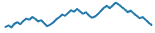
Example chart
TrendDirection
Shows an up or down arrow chosen purely from the sign of its value: a negative number shows the
down arrow, anything else (zero, positive, non-numeric) shows the up arrow. By default, the arrow colors are
are red for down arrows and green for up arrows. Use the Configuration function of the TrendDirection to customize the color.
<TrendDirection ValueColumn="Trend" HorizontalAlignment="left" />
The two icons:
| Shown when | Icon |
|---|---|
| the value is zero or positive |  (Color can be customized by the TrendDirection Configuration function) (Color can be customized by the TrendDirection Configuration function) |
| the value is negative |  (Color can be customized by the TrendDirection Configuration function) (Color can be customized by the TrendDirection Configuration function) |
| Property | Allowed values |
|---|---|
HorizontalAlignment |
left, center, right |
ValueColumn |
a column name from the card's result set |
Configuration function |
See TrendDirection Configuration function return object |
TrendDirection Configuration function return object
{
  horizontalAlignment: "left | center | right",
  color: "CSS color",
  colorRole: "positive | negative | neutral" // If both color and colorRule is specified, only color is applied.
  value: number
}
Example
function getConfigOverride(args, app){
  // Using the colorRole allows the system to pick the color from the current theme based on the role value.
  let colorRole = 'positive'
  if(args.row.Value === 0) {
    colorRole = 'neutral'
  } else {
    if(args.row.Value > 0){
      colorRole = args.row.IsCost ? 'negative' : 'positive'
    } else {
      // Negative value, so negative cost is a 'positive'
      colorRole = args.row.IsCost ? 'positive' : 'negative'
    }
  }

  // We only need to return the property that we want to override
  return {
    colorRole
  }
}
TrendBadge
Shows a trend badge — increase, decrease, or "same". The bound column must contain one of the
tokens increase, decrease, or same (matched case-insensitively); any other or empty value
renders no icon. The data source owns the threshold logic that decides which token to emit.
<TrendBadge ValueColumn="TrendToken" HorizontalAlignment="left" />
The badge per token:
| Token | Icon |
|---|---|
increase |
 |
decrease |
 |
same |
 |
| Property | Allowed values |
|---|---|
HorizontalAlignment |
left, center, right |
ValueColumn |
a column name from the card's result set; its value must be increase, decrease, or same |
Configuration function |
Use when you need advanced, dynamic state configuration. See TrendBadge Configuration function return object |
TrendBadge Configuration function return object
{
  horizontalAlignment: "left | center | right",
  value: "increase | decrease | same"
}
Example
function getConfigOverride(args, app){
  let diff = args.row.ThisYear - args.row.LastYear;
  let value = diff > 0 ? 'increase' : 'decrease';
  if(diff === 0){
    value = 'same'
  }
  return {
    value
  }
}
StatusBlock
A solid colored block whose background color comes from its own resolved state Color. Use it as a
bold, text-free status indicator.
| Property | Allowed values |
|---|---|
HorizontalAlignment |
left, center, right |
<StatusBlock HorizontalAlignment="left">
  <States>
    <State>
      <Condition><![CDATA[NumericValue > 25]]></Condition>
      <Properties><Property Name="Color" Value="green" /></Properties>
    </State>
    <State>
      <Condition><![CDATA[NumericValue <= 25]]></Condition>
      <Properties><Property Name="Color" Value="red" /></Properties>
    </State>
  </States>
</StatusBlock>
| Description | Image |
|---|---|
With no resolved Color, the block renders in its default neutral fill |
 |
When a state resolves a Color, that color fills the block |
 |
Image
Displays the image from its own resolved state. The state's Image value is resolved through the
Image Library when it is an @images/<image-name>.png reference; a raw image URL is also
accepted.
| Property | Allowed values |
|---|---|
HorizontalAlignment |
left, center, right |
The image to show is set on the component's states, via an Image property. The value is usually
an Image Library reference of the form @images/<image-name>.png (for example @images/trend-up.png):
<Row>
  <Image HorizontalAlignment="center">
    <States>
      <State>
        <Condition><![CDATA[NumericValue > 25]]></Condition>
        <Properties><Property Name="Image" Value="@images/trend-up.png" /></Properties>
      </State>
      <State>
        <Condition><![CDATA[NumericValue <= 25]]></Condition>
        <Properties><Property Name="Image" Value="@images/trend-down.png" /></Properties>
      </State>
    </States>
  </Image>
</Row>
@images/ references an image stored in your solution's Image Library (web assets), which must
exist in the library to display. A raw image URL also works — any value that does not start with
@images is used as-is. Using an @images/ reference is recommended so the image travels with the
solution. See Data and states for the full
explanation, and the Button control for the same
@images/ convention elsewhere in InVision.
StatusIndicator
A status icon chosen from its own resolved state Status. Use it for a compact status indicator.
The icon is selected by the state's Status token — Complete, HalfWay, or Initial; if the
resolved state has no (or an unrecognized) Status, no icon is shown.
The icon per Status token:
| Status | Icon |
|---|---|
Complete |
 |
HalfWay |
 |
Initial |
 |
| Property | Allowed values |
|---|---|
HorizontalAlignment |
left, center, right |
Configuration function |
Use when you need advanced, dynamic state configuration. See StatusIndicator Configuration function return object |
<Row>
  <StatusIndicator>
    <States>
      <State>
        <Condition><![CDATA[NumericValue >= 100]]></Condition>
        <Properties><Property Name="Status" Value="Complete" /></Properties>
      </State>
      <State>
        <Condition><![CDATA[NumericValue >= 50]]></Condition>
        <Properties><Property Name="Status" Value="HalfWay" /></Properties>
      </State>
      <State>
        <Condition><![CDATA[NumericValue < 50]]></Condition>
        <Properties><Property Name="Status" Value="Initial" /></Properties>
      </State>
    </States>
  </StatusIndicator>
</Row>
StatusIndicator Configuration function return object
For advanced scenarios, for example if you need to include Workbook variables to determine the status, use the Configuration function.
{
  horizontalAlignment: "left | center | right",
  status: "Complete | Halfway | Initial" // Case insensitive
}
Example
function getConfigOverride(args, app){
  let pctComplete = args.row.PctComplete;
  // In case we return a non-numeric value (string) from the database, convert it
  if(!app.lib.numerics.isNumber(pctComplete)){
    pctComplete = app.lib.numerics.convertToNumber(pctComplete);
  }
  const initialThreshold = app.variables.initialThreshold ?? 25;
  let status = 'halfway'
  if(pctComplete < initialThreshold){
    status = 'initial'
  }else if(pctComplete >= 95){
    status = 'complete'
  }

  return {
    status
  }
}
Configuration function API
Example - use in-memory dataset
This example shows how to use data from a Worksheet or SQL Report already loaded to a Workbook in a KPI Card.
This is useful when you wish to re-use data from an already loaded dataset in your KPI Cards instead of loading it from the server with a custom SQL query.
function getConfigOverride(args, app){
  // Use the app.datasets API to get a dataset already loaded to the Workbook.
  // app.datasets.getNames() to list the names of all in-memory datasets in the Workbook.
  const kpiDataTable = app.datasets.get('KPI Data');
  let sum = 0;
  for(const row of kpiDataTable.length){
      sum += row.Amount;
  }

  return {
      value: sum
  }
}