Merge tables
Merges rows from a SQL Server source table or view into a target table using the SQL Server MERGE statement. Matched rows are updated, unmatched rows are inserted, and optionally rows missing from the source are deleted from the target.
Use this to synchronize a staging table with a production table — inserting new records, updating changed records, and removing deleted records in a single operation.
Tip
This action wraps a standard MERGE statement. For complex merge logic with custom WHEN clauses or multiple match conditions, use Execute Command with a hand-written MERGE statement instead.
When to use this
- To synchronize a staging table into a production table after an ETL load — inserting new rows and updating existing ones in one step.
- To apply incremental changes from an import table to a master table, keeping the target in sync with the source.
- To upsert data (insert or update) without writing custom SQL.
How it works
- Input: A source table or view and a target table on the same connection, plus a merge configuration that defines how rows are matched and what happens on match, no match, and (optionally) when a target row has no corresponding source row.
- Processing: Generates and executes a
MERGEstatement based on the configured match keys and actions. - Output: Optionally stores the number of affected rows in a Flow variable specified by Result variable name.

Example 
This flow runs a full staging cycle. Create Table from Source clones the Orders schema into Orders_Staging. Insert Rows loads data into the staging table. Merge Orders_Staging into Orders synchronizes the staged rows into the production Orders table — inserting new rows and updating existing ones based on the configured match keys. Delete Table then drops the staging table, which is no longer needed. Use this pattern in recurring ETL Flows where staging data must be reconciled with a production table.
Properties
| Name | Required | Description |
|---|---|---|
| Title | No | A descriptive title for the action. |
| Connection | Yes | The SQL Server Connection to the database containing both tables. |
| Enable dynamic connection | No | When enabled, uses a connection created at runtime by Create Connection. Use this when the target database varies between runs. |
| Source | Yes | The name of the source table or view to merge from. |
| Target table | Yes | The name of the target table to merge into. |
| Merge configuration | Yes | Defines how rows are matched between source and target, and what happens on match, no match, and when a target row is missing from the source. See Merge configuration below. |
| Result variable name | No | The name of a Flow variable that receives the number of rows affected by the merge. Use this to pass the count to downstream actions or conditions. |
| Command timeout (seconds) | No | Maximum execution time in seconds. The action fails with a timeout error if exceeded. Default is 120 seconds. |
| Disabled | No | When checked, the action is skipped during Flow execution. |
| Description | No | Additional notes or comments about the action or configuration. |
Merge configuration
Click the edit icon next to Merge configuration to open the configuration editor. The editor has three tabs:
Conditions
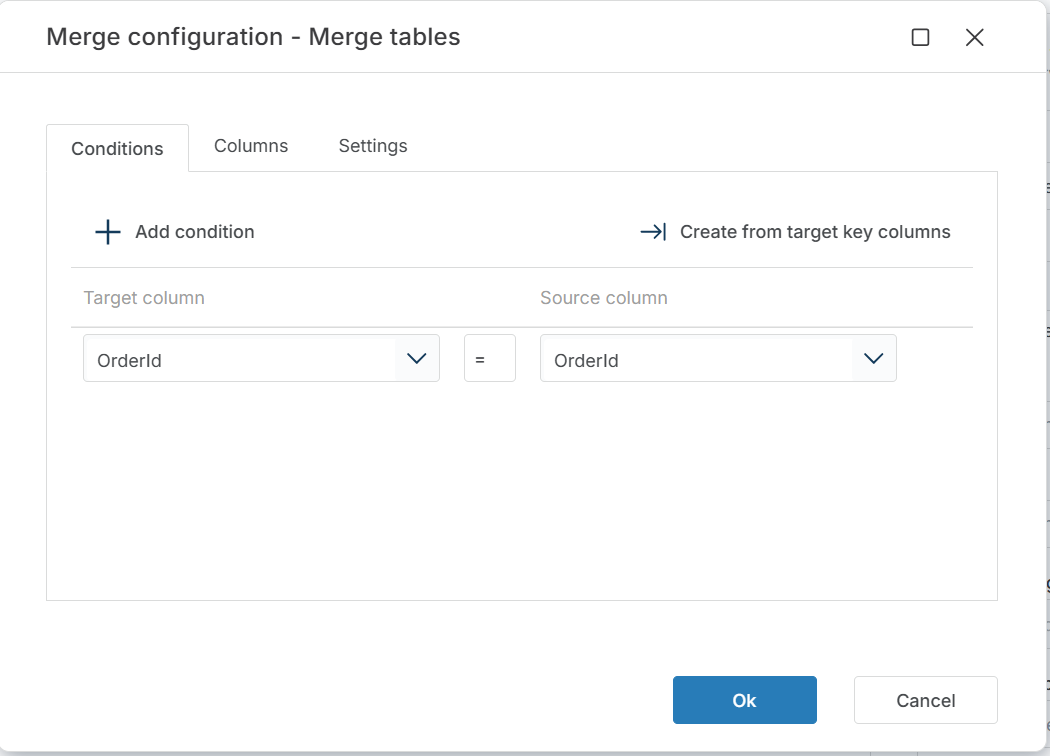
Defines how rows are matched between source and target. Each condition pairs a target column with a source column. Rows where all conditions match are considered the same record.
Click + Add condition to define match keys manually, or click Create from target key columns to generate conditions from the target table's primary key.
Columns
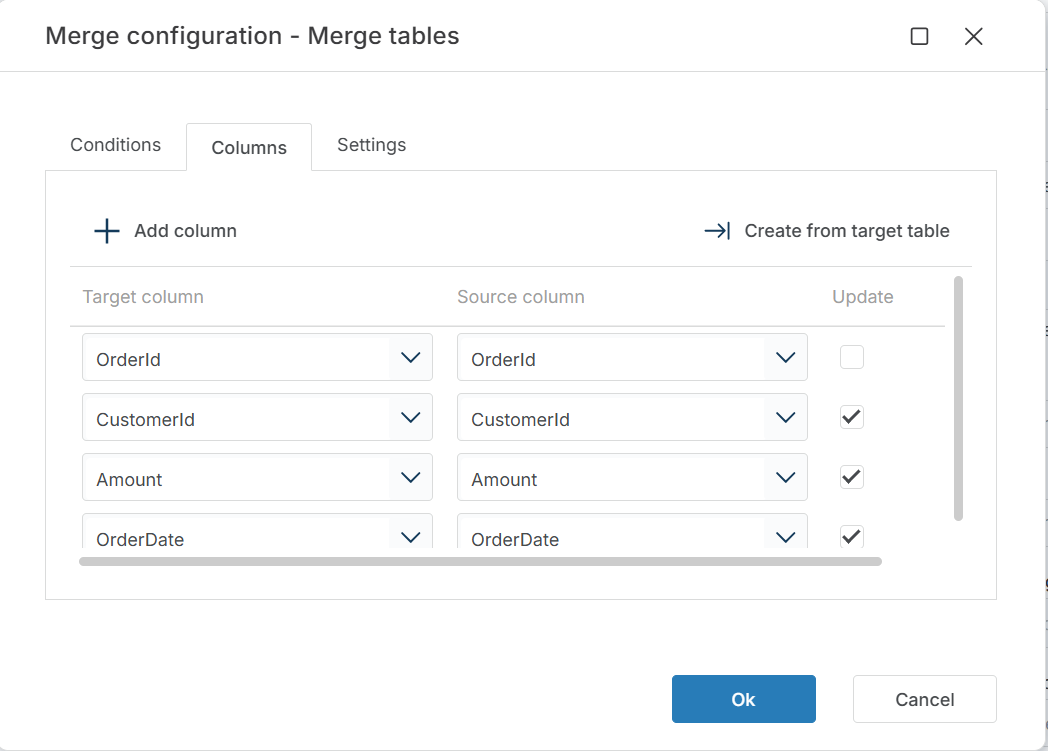
Defines which columns are included in the merge and which are updated when a match is found. Each entry maps a target column to a source column. The Update checkbox controls whether the column is overwritten when the row already exists in the target.
Click + Add column to define mappings manually, or click Create from target table to generate the column list from the target table schema.
Tip
Leave Update unchecked for key columns — updating the column you match on causes unexpected results.
Settings
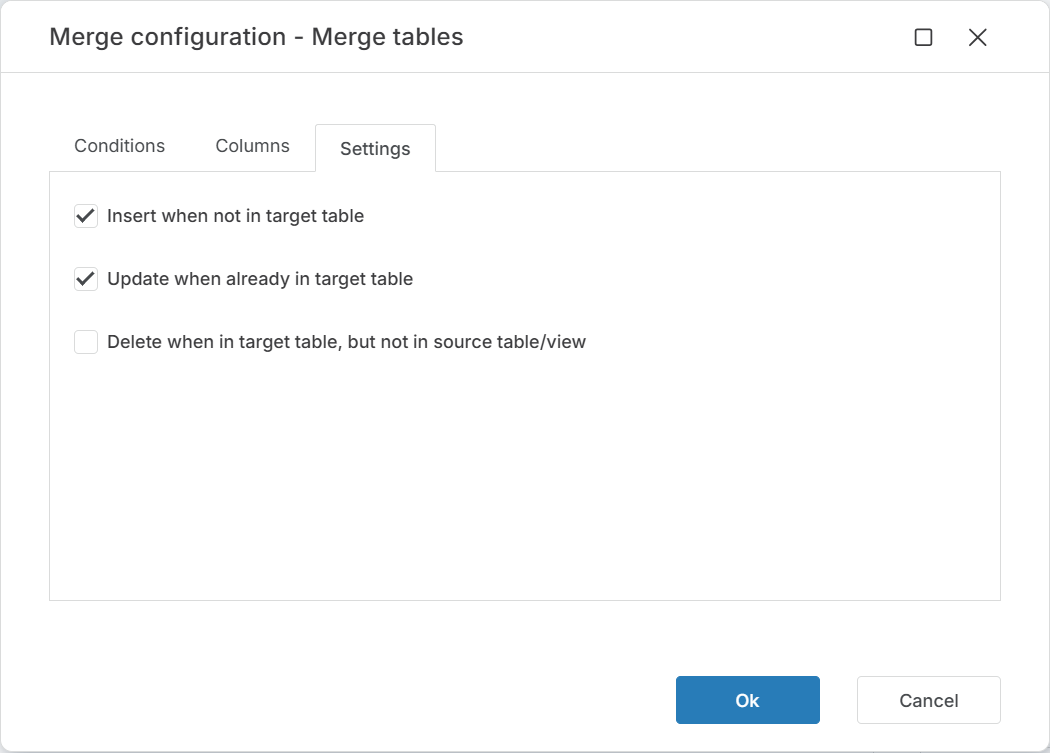
Controls what happens for each of the three merge cases:
| Setting | Default | Description |
|---|---|---|
| Insert when not in target table | ☑ | Inserts source rows that have no match in the target. Corresponds to WHEN NOT MATCHED BY TARGET THEN INSERT. |
| Update when already in target table | ☑ | Updates target rows that match a source row. Only columns with Update checked in the Columns tab are overwritten. Corresponds to WHEN MATCHED THEN UPDATE. |
| Delete when in target table, but not in source table/view | ☐ | Deletes target rows that have no corresponding source row. Corresponds to WHEN NOT MATCHED BY SOURCE THEN DELETE. |
Warning
Enabling Delete when in target table, but not in source table/view removes target rows that are missing from the source. If the source contains only a partial data set, this deletes rows that should be kept. Use only when the source represents the complete data set.
Returns
No direct return value. If Result variable name is set, the specified Flow variable receives the number of rows affected (inserted, updated, or deleted) by the merge.
See also
- Insert Data — inserts rows into a table without update logic.
- Insert or Update Row — upserts a single row based on key match.
- Execute Command — runs a custom SQL statement for complex merge scenarios.
- Truncate Table — clears a table before a full reload (alternative to merge for full-refresh patterns).
- Connection — how to set up a SQL Server connection.
SQL Server: Videos / Getting started
This section contains videos to help you get started quickly working with Azure SQL / SQL Server using Flow.
Dump CSV file from Azure Blob container to Azure SQL table
This video demonstrates how to import all records from a CSV file into an Azure SQL table.
In the demo, no data import options (such as data type conversion, number or date formatting) are specified, meaning the data is imported as raw text.