Create table
Creates a table in a SQL Server database. If the table already exists, the action does nothing and no error is raised.
Use this to provision tables dynamically as part of data-loading or deployment Flows — for example, creating a staging table on the first run and skipping creation on subsequent runs when paired with Check if Table Exists.
When to use this
- To set up staging or target tables before loading data, so the Flow works on a clean environment without manual database preparation.
- In deployment or migration Flows that create database objects only when they don't already exist.
- To create tenant-specific or run-specific tables at runtime using a dynamic connection and parameterized table names.
How it works
- Input: A table name, a SQL Server connection, and a column definition specifying each column's name, SQL type, key status, and nullability.
- Output: No return value. Downstream actions can reference the created table by name.
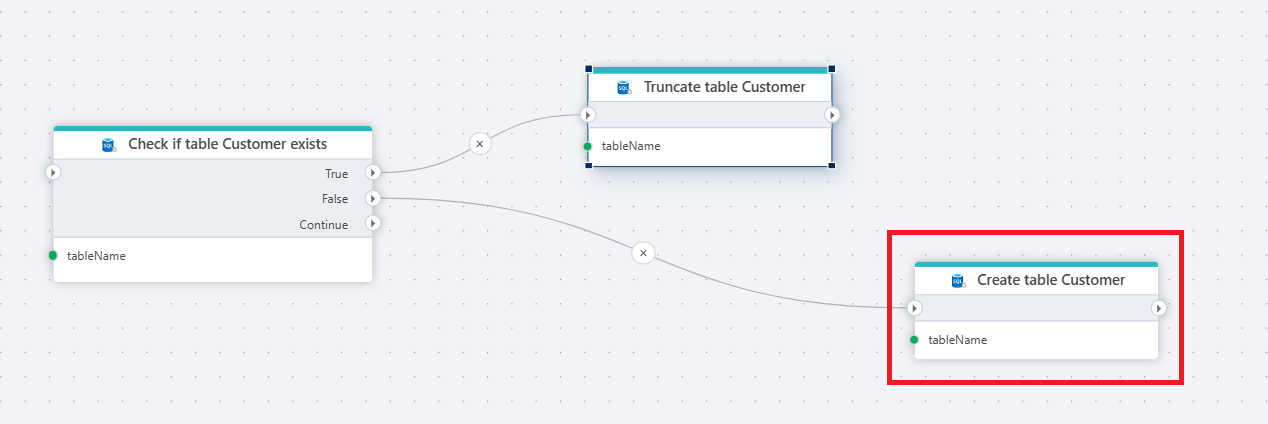
Example 
This flow prepares a Customer table before loading data. Check if Table Exists queries the database and branches on the result. If the table exists (True), Truncate Table clears the existing rows so data is not duplicated. If it does not (False), Create Table creates it with the configured column schema. Use this pattern at the start of data-loading Flows to guarantee the target table is present and empty — it prevents errors on the first run (table missing) and data duplication on subsequent runs.
Properties
| Name | Required | Description |
|---|---|---|
| Title | No | A descriptive title for the action. |
| Connection | Yes | The SQL Server Connection to the target database. |
| Enable dynamic connection | No | When enabled, uses a connection created at runtime by Create Connection. Use this when the target database varies between runs. |
| Table name | Yes | The name of the table to create. |
| Column definitions | Yes | The table schema — a list of columns with SQL types, key constraints, and nullability. See Column definitions below. |
| Command timeout (seconds) | No | Maximum execution time in seconds. The action fails with a timeout error if exceeded. Default is 120 seconds. |
| Disabled | No | When checked, the action is skipped during Flow execution. |
| Description | No | Additional notes or comments about the action or configuration. |
Column definitions
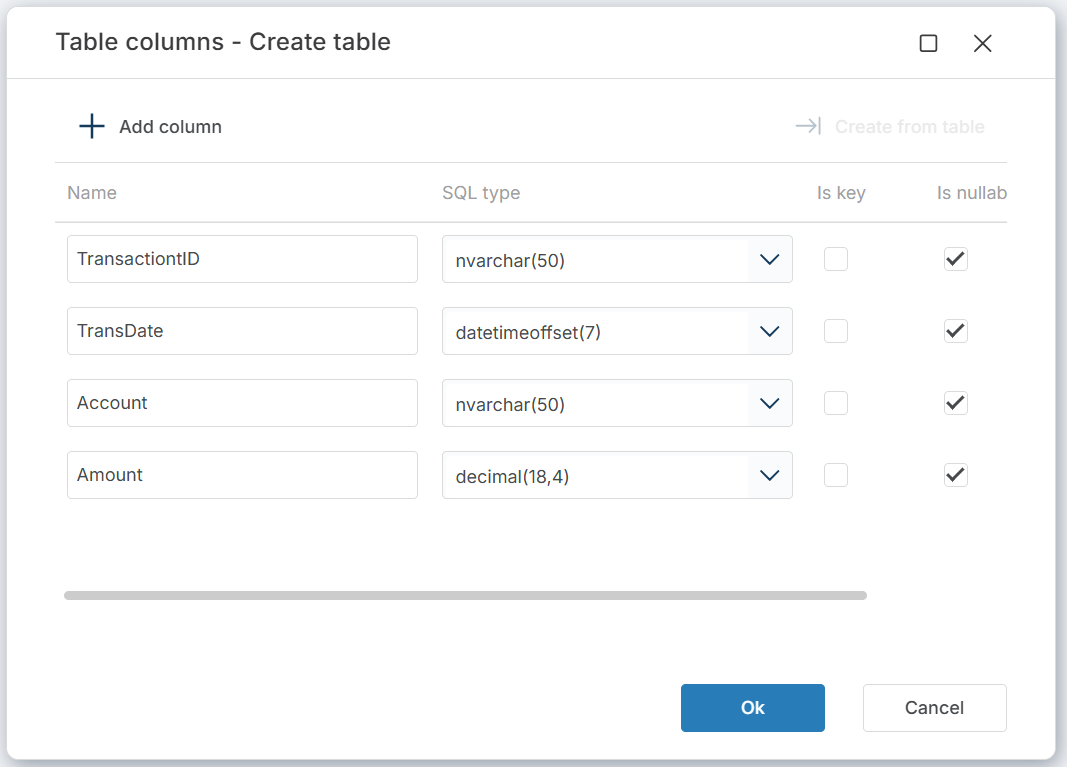
Click the edit icon next to Column definitions to open the column editor. You can define columns manually with + Add column, or click Create from table to import the schema from an existing table.
Each column has four fields:
| Field | Description |
|---|---|
| Name | The column name as it will appear in the database table. |
| SQL type | The SQL Server data type, including precision where applicable (e.g. nvarchar(50), decimal(18,4), datetimeoffset(7)). |
| Is key | When checked, the column is part of the primary key. |
| Is nullable | When checked, the column accepts NULL values. |
Returns
No return value. The action creates the table. If the table already exists, the action completes successfully without changes.
See also
- Check if Table Exists — checks whether a table exists before creating or truncating it.
- Create Table from Source — creates a table with a schema derived from an existing source.
- Truncate Table — removes all rows from a table without dropping it.
- Delete Table — removes a table from the database.
- Connection — how to set up a SQL Server connection.
SQL Server: Videos / Getting started
This section contains videos to help you get started quickly working with Azure SQL / SQL Server using Flow.
Dump CSV file from Azure Blob container to Azure SQL table
This video demonstrates how to import all records from a CSV file into an Azure SQL table.
In the demo, no data import options (such as data type conversion, number or date formatting) are specified, meaning the data is imported as raw text.