Get entity
Executes a SQL query against a SQL Server database and returns the first row as a single typed .NET entity object. Each column in the result is mapped to an entity property defined in the Entity properties configuration.
Use this when you need exactly one record from a query — for example, to look up a configuration value, retrieve a single customer by ID, or fetch the latest row matching a condition.
An entity is a .NET object with one or more properties:
public record Customer(string VATNumber, string Name, string Address);
When to use this
- To retrieve a single record by primary key or unique filter for use in downstream actions.
- To look up a configuration or settings row that a Function action needs to reference.
- When you expect one row and want a typed object, not a DataReader or scalar value.
Note
This action returns the first row from the result set. If the query returns multiple rows, only the first is mapped. Use TOP 1 or a unique filter to make this explicit.
How it works
- Input: A SQL query (with optional parameters) and an entity properties mapping that defines how result columns map to entity properties.
- Processing: Executes the query, takes the first row from the result set, and maps it to a typed entity object.
- Output: Returns the entity as a Flow variable specified in Result variable name. Downstream actions reference the variable to access property values (e.g.
entity.Name).
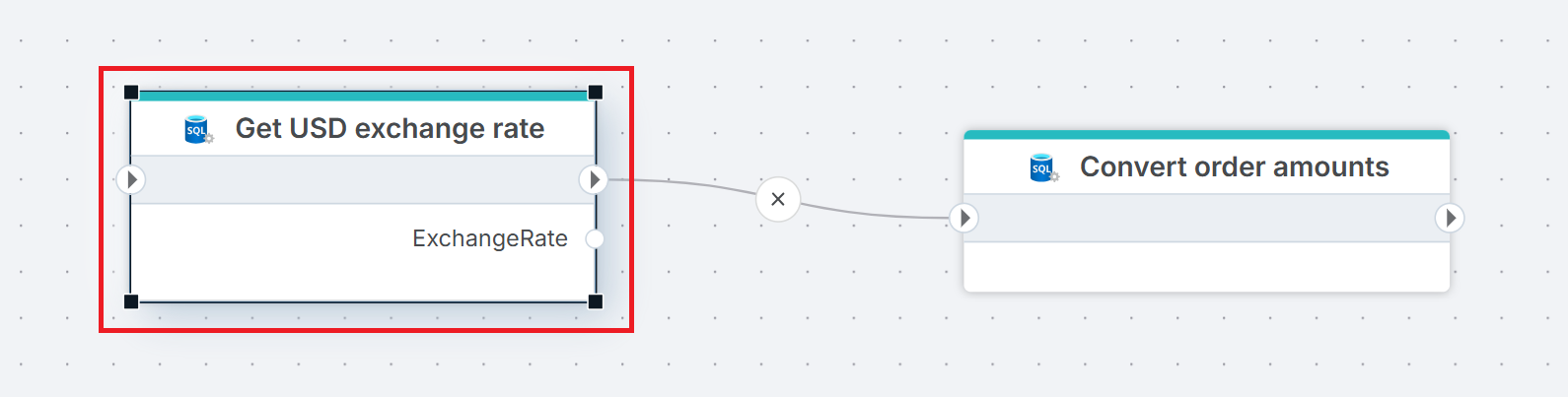
Example 
This flow looks up the current USD exchange rate and applies it to unconverted orders. Get USD exchange rate retrieves the most recent rate from the ExchangeRates table as a single entity in the ExchangeRate variable. Execute Command then uses the Rate property to update all USD orders that have not yet been converted. Use Get entity when you need a single lookup value — a configuration row, a rate, or a record by ID — that downstream actions consume.
Properties
| Name | Required | Description |
|---|---|---|
| Title | No | A descriptive title for the action. |
| Connection | Yes | The SQL Server Connection to the target database. |
| Enable dynamic connection | No | When enabled, uses a connection created at runtime by Create Connection. Use this when the target database varies between runs. |
| SQL expression and parameters | Yes | The SQL query to execute, with optional parameters. Supports parameterized queries and Flow variable interpolation. |
| Entity name | No | The name of the generated entity type (e.g. MyEntity). This becomes the class name of the mapped .NET object. |
| Entity properties | Yes | Defines how result columns map to entity properties. Click the edit icon to open the mapping editor. See Entity properties below. |
| Result variable name | No | The name of the Flow variable that holds the returned entity. Default is entity. Downstream actions reference this variable to access property values. |
| Command timeout (seconds) | No | Maximum execution time in seconds. The action fails with a timeout error if exceeded. Default is 120 seconds. |
| Disabled | No | When checked, the action is skipped during Flow execution. |
| Description | No | Additional notes or comments about the action or configuration. |
Entity properties
Click the edit icon next to Entity properties to open the entity properties editor. You can define properties manually with + Add property, or click Create from query to generate the mapping automatically from the query result columns.
Each property has two fields:
| Field | Description |
|---|---|
| Name | The property name on the entity object (e.g. VATNumber, Name, Address). Must match or map to a column in the query result. |
| Type | The .NET data type for the property (e.g. String (Text), Int 32). Nullable types are available for columns that can contain NULL. |
Tip
Use Create from query to avoid manual mapping. It executes the SQL query and generates the property list from the result columns automatically.
Returns
A single .NET entity object with properties specified by the Entity properties configuration. If the query returns no rows, the variable is null — downstream actions that reference the entity should handle this case.
See also
- Get Entities — retrieves multiple entities as a typed list.
- Get Single Value — returns a single scalar value from a query.
- For Each Row from Query — iterates over rows one at a time.
- Get DataReader — returns a forward-only stream for large result sets.
- Connection — how to set up a SQL Server connection.
SQL Server: Videos / Getting started
This section contains videos to help you get started quickly working with Azure SQL / SQL Server using Flow.
Dump CSV file from Azure Blob container to Azure SQL table
This video demonstrates how to import all records from a CSV file into an Azure SQL table.
In the demo, no data import options (such as data type conversion, number or date formatting) are specified, meaning the data is imported as raw text.