For each row from query
Executes a SQL query and iterates over each row in the result set, running connected downstream actions once per row. Each row is mapped to a typed entity object and exposed as a Flow variable that downstream actions can reference.
Use this when you need to process query results row by row — for example, to send a notification per record, update rows individually based on calculated logic, or call an external API for each result.
When to use this
- To process each row from a query individually — updating records, sending notifications, or calling APIs per row.
- To iterate over a filtered result set and run conditional logic on each row.
- When row-level processing is required and bulk operations (Execute Command, Merge Tables) cannot express the needed logic.
Tip
If you need to process query results as a single batch rather than row by row, use Get DataReader instead.
How it works
- Input: A SQL query (with optional parameters) and a row-to-entity mapping that defines how result columns map to entity properties.
- Processing: Executes the query, then iterates over each row. For each row, the mapped entity is assigned to the variable specified in Row variable name and the actions connected to the For each row output port run. After all rows are processed, execution continues from the Continue output port.
- Output: No return value. The row entity is available as a Flow variable during each iteration.
Example 
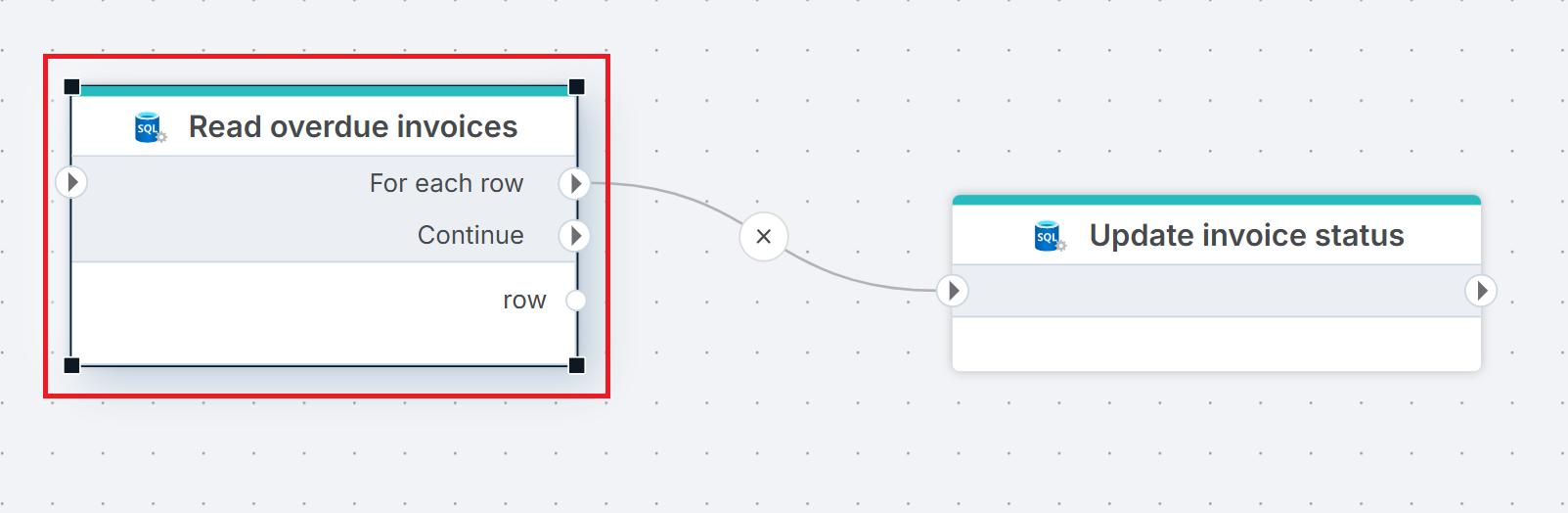
This flow reads overdue invoices and marks each one as reminded. Read overdue invoices queries the Invoices table for rows where DueDate is in the past and Status is Pending. For each row, Execute Command updates the invoice status to Reminded using the InvoiceId from the current row entity. Use this pattern when you need to process query results one row at a time — applying per-row logic that cannot be expressed as a single bulk statement.
Properties
| Name | Required | Description |
|---|---|---|
| Title | No | A descriptive title for the action. |
| Connection | Yes | The SQL Server Connection to the target database. |
| Enable dynamic connection | No | When enabled, uses a connection created at runtime by Create Connection. Use this when the target database varies between runs. |
| SQL expression and parameters | Yes | The SQL query to execute, with optional parameters. Supports parameterized queries and Flow variable interpolation. See Execute Command — How to use parameters for syntax. |
| Row to entity mapping | Yes | Defines how result columns map to entity properties. Click the edit icon to open the mapping editor and configure each column's name, property name, and data type. |
| Row variable name | No | The name of the Flow variable that holds the current row entity during each iteration. Default is row. Downstream actions reference this variable to access column values. |
| Row data type | No | The name of the generated entity type. Default is SQLServer_ReadRows_Row. Change this if you need multiple For each row from query actions in the same Flow with different schemas. |
| Command timeout (seconds) | No | Maximum execution time in seconds. The action fails with a timeout error if exceeded. Default is 120 seconds. |
| Disabled | No | When checked, the action is skipped during Flow execution. |
| Description | No | Additional notes or comments about the action or configuration. |
Row to entity mapping
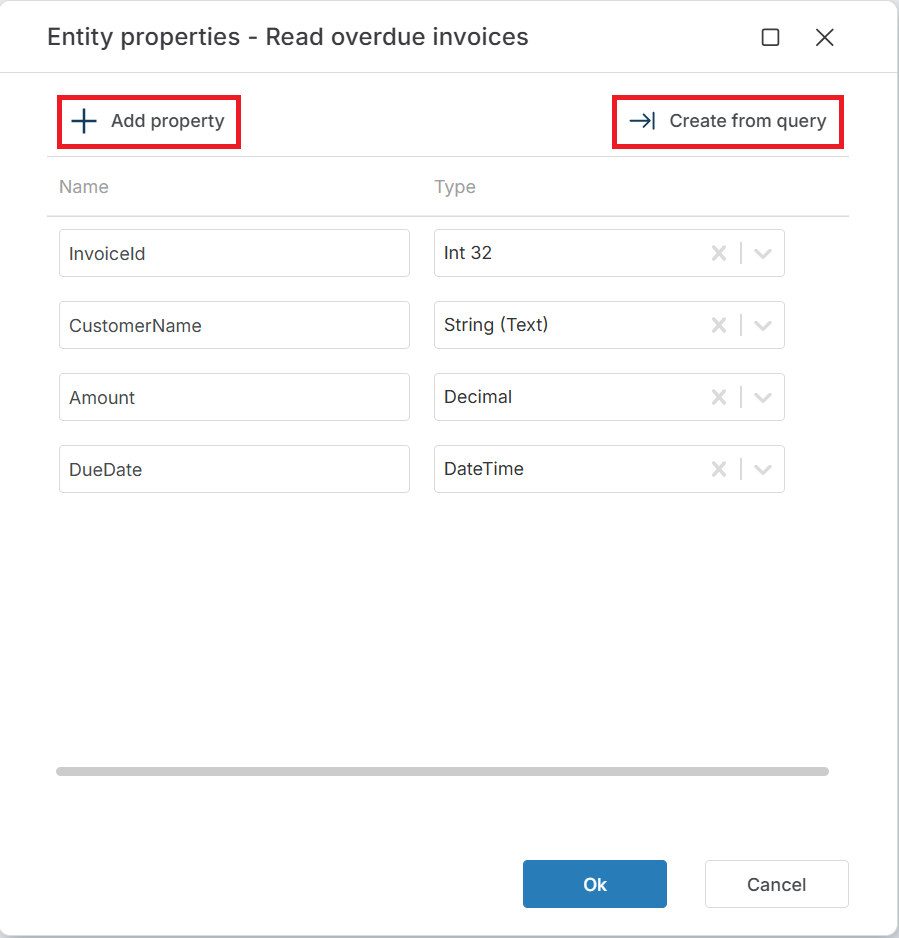
Click the edit icon next to Row to entity mapping to open the entity properties editor. You can define properties manually with + Add property, or click Create from query to generate the mapping automatically from the columns returned by the SQL query.
Each property has two fields:
| Field | Description |
|---|---|
| Name | The property name on the row entity. Downstream actions reference this name to access the column value (e.g. row.Amount). |
| Type | The .NET data type for the property. Nullable types are available for columns that can contain NULL (e.g. Decimal? (Nullable)). |
Tip
Use Create from query to avoid manual mapping. It reads the SQL query from SQL expression and parameters, executes it, and generates the property list from the result columns automatically.
Returns
No direct return value. During each iteration, the current row entity is available as a Flow variable (default name: row). After all rows are processed, execution continues from the Continue output port.
If the query returns no rows, the For each row port never fires and execution proceeds directly to Continue.
Code examples
Basic query with filter
SELECT InvoiceId, CustomerName, Amount, DueDate
FROM Invoices
WHERE DueDate < GETDATE() AND Status = 'Pending'
Query with SQL parameters
Use SQL parameters to pass values from Flow variables into the query. Declare parameters in the SQL expression and parameters editor.
SELECT OrderId, ProductName, Quantity
FROM Orders
WHERE CustomerId = @CustomerId AND OrderDate >= @StartDate
Referencing row properties in downstream actions
The row entity is available by the name specified in Row variable name (default: row). In a downstream Execute Command, reference row properties as SQL parameters:
-- In the downstream Execute Command action,
-- @InvoiceId is mapped to row.InvoiceId automatically.
UPDATE Invoices SET Status = 'Reminded' WHERE InvoiceId = @InvoiceId
Note
Parameter names in the downstream action must match the property names defined in Row to entity mapping. If the mapping defines InvoiceId, the parameter must be @InvoiceId.
See also
- Get DataReader — executes a query and returns the full result set as a DataReader for batch processing.
- Get Single Value — executes a query and returns a single scalar value.
- Execute Command — executes a SQL command without returning results.
- Get Entity — retrieves a single entity from a query.
- Get Entities — retrieves multiple entities from a query as a collection.
- Connection — how to set up a SQL Server connection.
SQL Server: Videos / Getting started
This section contains videos to help you get started quickly working with Azure SQL / SQL Server using Flow.
Dump CSV file from Azure Blob container to Azure SQL table
This video demonstrates how to import all records from a CSV file into an Azure SQL table.
In the demo, no data import options (such as data type conversion, number or date formatting) are specified, meaning the data is imported as raw text.